
How To
How to Add Music to KineMaster in 3 Steps

- June 1, 2021
- Updated: July 2, 2025 at 4:05 AM
If you like fiddling with songs and clips, KineMaster can become your go-to app on Android. Making masterful videos and your artistic vision into reality is as easy as pie with this video editor.
Here’s a quick look at how you can add music to the experience.
Add the clip to your KineMaster timeline
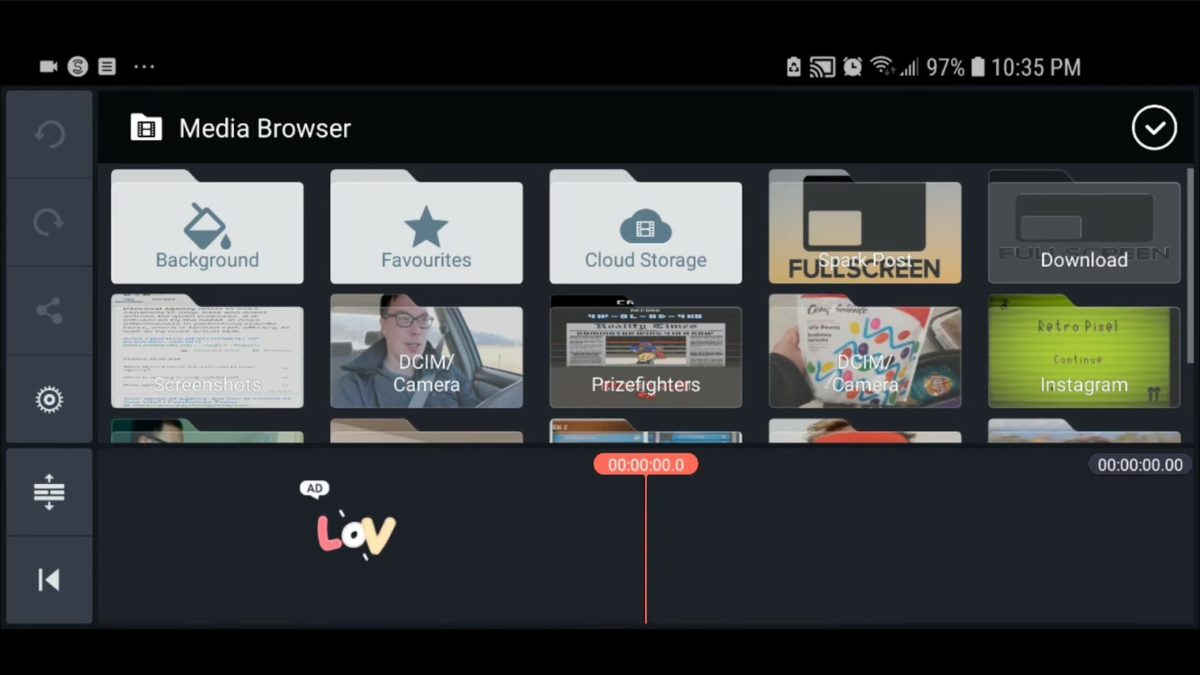
Although you can add music to the timeline first, it’s easier to choose the atmosphere if you have the material edited and ready for the audio. Click “Media” and select it to add to the project. Make rough cuts to understand the length of the final video and make other creative decisions. Once it’s ready, move to the next step.
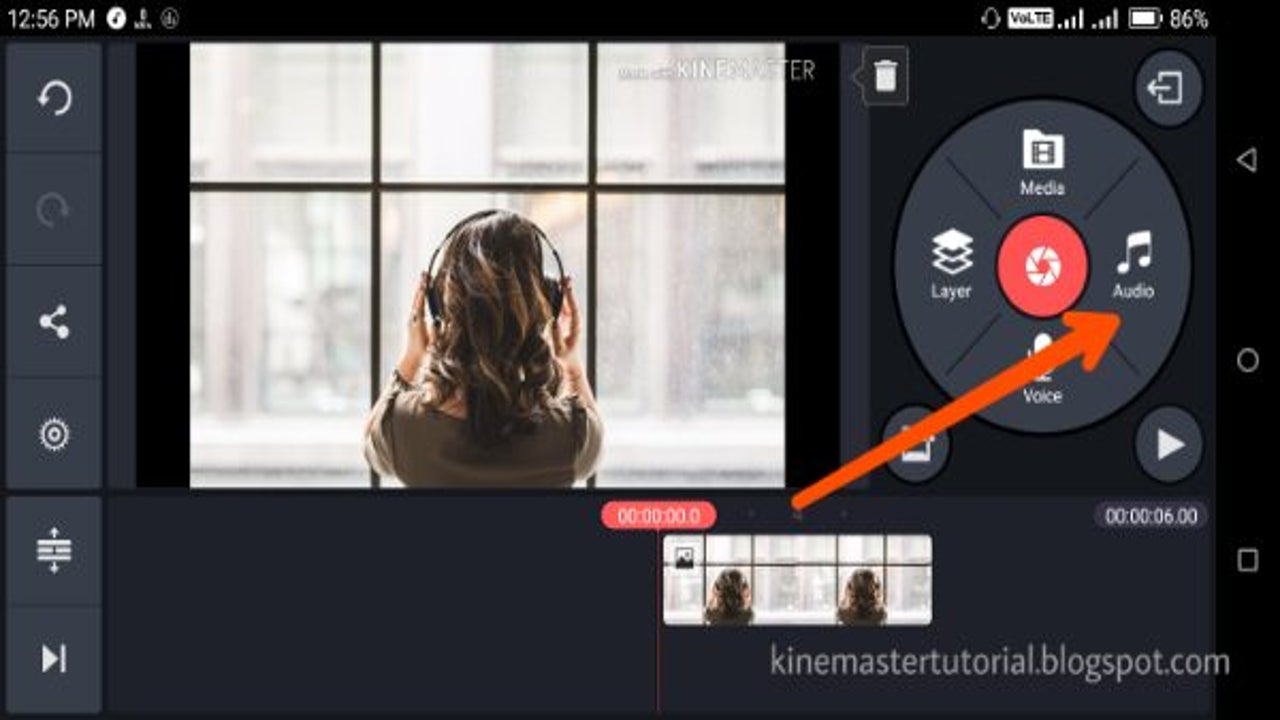
Tap the “Audio” icon and click “Add (+)”
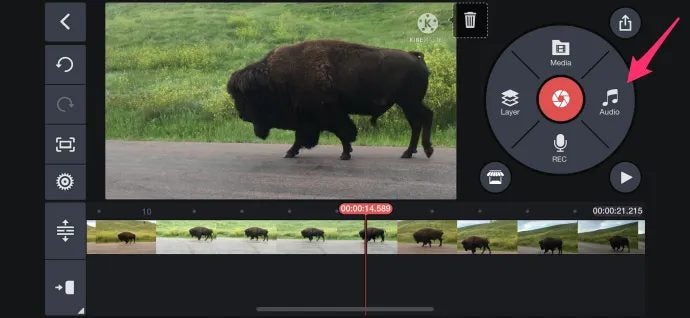
Importing music is as easy as getting the visuals. The “Audio” icon is on the right-hand side of the settings wheel. Click it, navigate to the “plus icon,” find the folder of choice, select the music file, and tap it to add.
Edit, save, and export
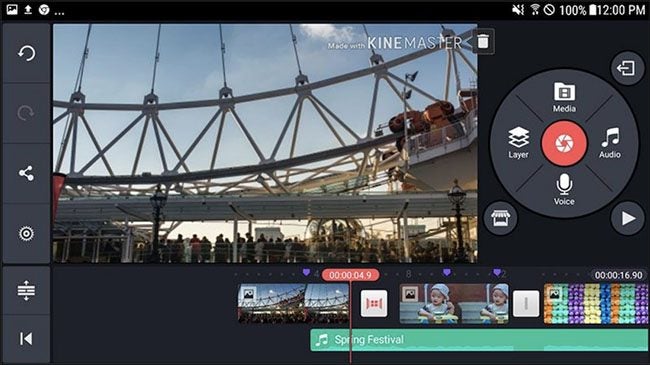
Once you have it on the timeline, you can manipulate the music as you want. Trim, use filters, compress, and whatnot. Once you’ve played with the music and picture enough, save the final product on your device or share it with friends on social media.
Record audio!
Voiceover is fun! Not only can you make a unique video with available music overlay, but you can also add a spoken word or a song recorded by you right in the app. KineMaster is a creative hub that doesn’t cease to amaze!
Latest from Shaun M Jooste
You may also like
 News
NewsThese updates in the gameplay system of Arc Raiders have their fans very worried
Read more
 News
NewsThis classic character from The Simpsons says goodbye after nearly three decades
Read more
 News
NewsSony's bet on AI could help you get through the difficult parts of games
Read more
 News
NewsThe X-Men are back! Will this revitalize Marvel?
Read more
 News
NewsThis character will not appear in the sequel to The Assistant
Read more
 News
NewsCybersecurity jobs at risk due to AI
Read more